Essential WordPress Plugins for Travel Blogs (Only 8)
On this page
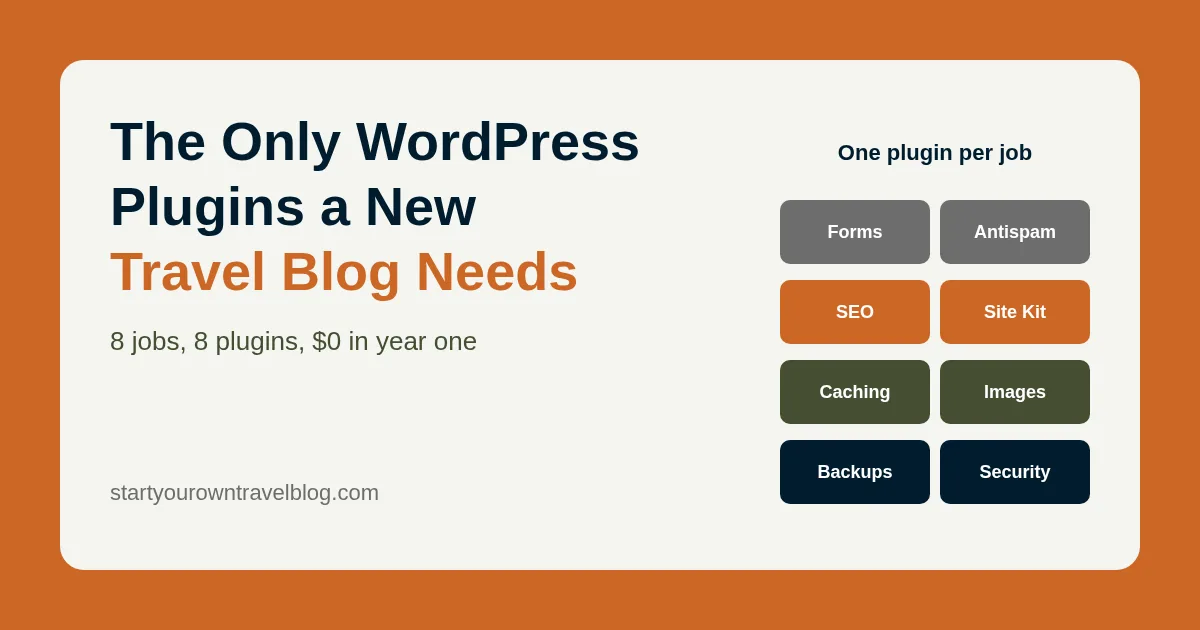
Honestly? A new travel blog needs about eight WordPress plugins, not forty. The essential stack in 2026 is: one SEO plugin (Yoast SEO or Rank Math), one security plugin (Wordfence or Solid Security), one caching plugin, one image optimizer that serves WebP or AVIF, one lightweight forms plugin, Site Kit by Google for Analytics and Search Console, one antispam plugin, and one backup plugin. Everything else is optional until a real problem proves you need it. In this post I’ll give you the exact plugins I install on client travel blogs, the settings that actually matter, the plugins I bin on sight, and the one rule that keeps a site fast for years: one plugin per job.
Key takeaways
- Eight jobs, eight plugins: SEO, security, caching, images, forms, Google connection, antispam, backups. Every one has a solid free version.
- Never install two plugins that do the same job (two SEO plugins, two caching plugins, a security plugin plus a firewall plugin). They fight, and your site pays for it in speed.
- Plugin count matters less than plugin weight. One page builder or slider plugin can cost you more speed than fifteen well-written ones.
- Site Kit hooks up GA4 and Search Console without touching a line of code. Do it in week one so you have data from day one.
- Back up BEFORE you need to. A free scheduled backup to Google Drive takes ten minutes to set up and has saved several of my clients’ blogs.
- Free tiers are enough in year one. Total spend can be $0. If you pay for one thing, make it caching or backups, not “premium SEO.”
This is part of my step-by-step guide to starting a travel blog. By now you should have WordPress installed and the post-install settings done and a light theme like Kadence or Astra switched on. If so, plugins take about an hour. Do them in the order below and you’ll be done before dinner.
How many plugins does a WordPress travel blog actually need?
Eight to twelve, and eight is the healthy number for a blog with fewer than a hundred posts. I’ve inherited travel blogs with 47 active plugins where the owner couldn’t tell me what 30 of them did. Each one was a quick fix for something small, installed in a hurry and forgotten. Together they produced a four-second page load, three admin notices on every screen, and a security scan full of “outdated component” warnings. Sound familiar?
The number itself isn’t the problem. A plugin is just PHP code that runs when WordPress does. A tiny plugin that adds a table of contents costs nothing you could measure. A page builder that loads 400KB of CSS and JavaScript on every page costs you a Core Web Vitals pass. So the rule isn’t “fewer plugins.” It’s one plugin per job, and no job you don’t have yet.
The essential WordPress plugins for a travel blog (the full list, nothing hidden)
Here’s the whole stack in one table, then the reasoning and the two or three settings that matter for each. Prices are what the developers listed when I checked in 2026 and they change all the time; treat them as ranges and check the current price.
| Job | My pick (free) | Alternative | Paid tier (approx.) | Needed in year one? |
|---|---|---|---|---|
| SEO | Yoast SEO | Rank Math | Yoast Premium ~$99–$119/yr; Rank Math Pro ~$80–$110/yr | Free tier |
| Security | Wordfence | Solid Security (formerly iThemes) | Wordfence Premium $149/yr | Free tier |
| Caching | Your host’s cache (Bluehost, SiteGround) or LiteSpeed Cache | WP Rocket, WP Super Cache | WP Rocket $59/yr | Free tier; WP Rocket is the one paid plugin worth it |
| Images (WebP/AVIF) | Converter for Media | ShortPixel, Imagify, Smush | ShortPixel from ~$4/mo; Imagify from ~$5/mo | Free tier if you resize before upload |
| Forms | Fluent Forms | WPForms Lite, Contact Form 7 | Fluent Forms Pro from ~$50/yr | Free tier |
| Google connection | Site Kit by Google | Manual GA4 snippet via theme | Free only | Yes, week one |
| Antispam | Akismet (Personal, name your price) | Antispam Bee (free, no account) | Akismet commercial from ~$10/mo once you earn | Free tier |
| Backups | UpdraftPlus | Host backups + Duplicator | UpdraftPlus Premium ~$70/yr | Free tier, scheduled to cloud |
1. SEO: Yoast SEO or Rank Math
Right, the big one. An SEO plugin writes your title tags and meta descriptions, spits out an XML sitemap, adds schema markup (Article, Person, Breadcrumb), and handles canonical URLs. WordPress does none of this properly on its own, which surprises people every time. I use Yoast SEO on this site and on most client sites because it’s been stable for fifteen years and its defaults are sensible. Rank Math is the popular alternative: more in the free tier (multiple focus keywords, a redirect manager, built-in schema types) and a slightly busier interface. Both are good. Honestly, both. Pick one and never, ever install the other alongside it.
Settings that matter: run the setup wizard, choose “Person” as the site represents type and enter your name (this feeds the author schema Google uses for E-E-A-T), upload a default social image, enable breadcrumbs, and set date and tag archives to noindex. Then forget the plugin exists, apart from the title and description box under each post. I go deeper in travel blog SEO for beginners.
2. Security: Wordfence or Solid Security
New WordPress sites get hammered by automated login attempts within days of going live. Nobody’s targeting you personally; bots just try every domain on earth. Wordfence’s free version gives you a firewall, a malware scanner, login rate limiting and two-factor authentication. Premium ($149/year) gets you firewall rules in real time instead of 30 days later, which matters for a business, not for a month-old blog. Solid Security (the plugin formerly called iThemes Security) has a free “Basic” version on wordpress.org with two-factor login, brute force protection and the option to change your login URL. Choose one. Just one.
Settings that matter: turn on two-factor authentication for your admin account (use an authenticator app), enable login attempt limiting, and set the scanner to email you weekly. Do NOT enable “hide login URL” unless you write the new URL in your password manager first; it’s the number one reason people lock themselves out of their own blog.
3. Caching: use your host’s cache first
Caching stores a finished copy of each page so the server doesn’t rebuild it for every visitor. It’s the single biggest server-side speed win you’ll get, and it’s usually free. Check what your host already gives you before installing anything: Bluehost has a caching toggle in its own plugin, SiteGround has SG Optimizer, Hostinger and loads of others run LiteSpeed servers where the free LiteSpeed Cache plugin is the right call. If your host offers nothing, WP Super Cache (free, by Automattic) is simple and safe. WP Rocket ($59/year) is the paid option I recommend when a client wants one dashboard for caching, file minification, lazy loading and delayed JavaScript. It’s the only paid plugin in this list I’d call worth it in year one, and even then only after your images are sorted.
Settings that matter: enable page caching, enable browser caching, and stop. Don’t switch on “combine CSS/JS” or “remove unused CSS” on day one; test those one at a time later, because they can quietly break themes. If you use Cloudflare’s free plan in front of your host, that’s your CDN; you still need page caching at the WordPress level.
4. Images: WebP/AVIF conversion
Travel blogs are photo-heavy (that’s the point of them), and images are usually two-thirds of a page’s weight. WordPress can make WebP images itself now, but you still want a plugin that converts your whole library and serves AVIF where the browser supports it. Converter for Media (free, 500,000+ installs) does this on your own server with one click over the existing library and no monthly quota. ShortPixel and Imagify do the compression on their servers, produce slightly smaller files, and charge from around $4–$5/month after a small free allowance. For a new blog, Converter for Media is plenty.
Settings that matter: enable both WebP and AVIF output, set quality around 80–85, and run the bulk optimizer once. But the bigger win is upstream: export photos at 1600–2000px wide before uploading, not the 6000px monster straight off your camera. My travel blog photo sizing and speed guide has the exact export settings for Lightroom, phones and Canva.
5. Forms: Fluent Forms or WPForms Lite
You need one contact form, and later maybe a “work with me” form. That’s it. Fluent Forms’ free version includes conditional logic, entries stored in WordPress and multi-column layouts, and it only loads its scripts on pages that actually contain a form. WPForms Lite is easier for absolute beginners with a drag-and-drop builder, but keeps entry storage for the paid tier. Contact Form 7 still works and is free, but it loads its assets on every page unless you add code to stop it, and there’s no entry storage without another plugin. Whichever you choose, pair it with a free SMTP plugin (WP Mail SMTP or FluentSMTP) if form emails land in spam; that’s a hosting email problem, not a form problem.
What to build with it: a three-field contact form (name, email, message) on your Contact page, like in my About and Contact page templates for travel blogs. That’s all you need for year one.
6. Site Kit by Google: GA4 and Search Console in ten minutes
Site Kit is Google’s own free plugin (5 million+ installs), and it’s the one I get asked about least and recommend most. It verifies your site in Search Console, creates or connects a Google Analytics 4 property, drops the tracking tag in the right place, and shows your top pages and search queries inside the WordPress dashboard. Without it you’d be pasting code snippets into your theme, which breaks the moment you change themes. Install it in week one; Search Console data only starts piling up after verification, and you’ll want that history six months from now when you’re trying to work out what’s ranking.
Settings that matter: connect Search Console and Analytics; skip AdSense and Tag Manager until you need them. Tick “exclude logged-in users” so your own visits don’t muddy the data. Full walkthrough in my GA4 and Search Console setup guide for travel bloggers.
7. Antispam: Akismet or Antispam Bee
Comment spam is relentless. Proper relentless. Akismet ships with WordPress, is free for personal, non-commercial blogs on a name-your-price plan, and is very accurate. Once your blog earns money from ads or affiliates, Akismet’s terms require a commercial plan (from around $10/month), which is when loads of people switch to Antispam Bee: free, no account, no data sent to third parties, and good enough for a blog with moderated comments. If you require manual approval of comments (which I told you to switch on after install), either one keeps your queue clean.
8. Backups: UpdraftPlus to Google Drive or Dropbox
Your host says it takes backups. Read the fine print, because I have: it’s often a daily snapshot kept for a few days, restored on request, with no guarantee whatsoever. Two clients have come to me after a host’s “backup” turned out to be useless. UpdraftPlus free backs up files and database on a schedule to Google Drive, Dropbox or similar, and restores from inside WordPress. Premium (~$70/year) adds incremental backups and more destinations; a new blog doesn’t need it.
Settings that matter: database backup daily, files weekly, keep four of each, remote storage Google Drive. Then, once, click “Restore” on a staging copy or at the very least download a backup and check the zip opens. A backup you’ve never tested is a hope, not a plan.
The one-plugin-per-job rule (and how to actually apply it)
Here’s the rule in full: every plugin on your site must own exactly one job, no two plugins may share a job, and no plugin gets installed for a job you don’t have yet. The decision tree below is how I apply it whenever someone messages me “should I install X?”
Some real examples of the rule in action, all from travel blogs I’ve cleaned up:
- Yoast SEO and Rank Math both active: two sitemaps, two sets of meta tags, duplicate schema. Google picks one at random. Keep one.
- Wordfence plus a separate “limit login attempts” plugin plus a “hide login” plugin: Wordfence already does the first, Solid Security does the third. Three plugins for one job.
- A caching plugin plus the host’s cache plus Cloudflare’s “APO”: stale pages that never update after you edit a post. Pick one layer for page caching.
- Smush and ShortPixel both active: every upload compressed twice, with visible artifacts on skies and sunsets. Your best photos, ruined twice.
- A table of contents plugin when Kadence Blocks or Rank Math already gives you a TOC block.
- A “related posts” plugin when the theme already shows related posts at the end of every article.
WordPress plugins to avoid on a travel blog (and what to use instead)
None of these are dodgy in themselves, and I’m not here to slag anyone off. They’re just heavier than the problem they solve, or they solve a problem you don’t have yet.
| Avoid (category) | Why it hurts a new travel blog | Use instead |
|---|---|---|
| Page builders (Elementor, WPBakery, Divi Builder) for blog posts | Hundreds of KB of CSS/JS on every page, layout lock-in, slow editing on shared hosting | The block editor plus your theme’s blocks (Kadence Blocks, Spectra, GenerateBlocks) |
| Slider and carousel plugins | Several large images loading before the first word; poor LCP; nobody clicks slide three | One strong featured image; a gallery block further down |
| Social share bars with counters | Load external scripts from every network on every page; counters call third-party APIs | A lightweight share block from your theme, or a Pinterest save button only |
| “All-in-one” optimization suites you don’t understand | Aggressive minification and CSS removal break themes silently; overlaps with caching plugin | One caching plugin with page + browser cache on; test other options one by one |
| Instagram feed plugins | Break whenever the Instagram API changes; load dozens of images on your homepage | A static row of four of your best photos linking to your profile |
| Google Fonts / typography plugins | Adds render-blocking requests; your theme already handles fonts and can host them locally | Theme typography settings with local font hosting |
| Popup and “exit intent” plugins in month one | Annoys the few readers you have; Google penalizes intrusive interstitials on mobile | An inline email signup block at the end of posts (see my email list guide) |
| Broken link checkers running continuously | Crawl your own site around the clock and can get you throttled on shared hosting | Run a check once a quarter with an external tool, then deactivate |
| Anything “nulled” or from a GPL club | No updates, frequent backdoors; the most common source of hacked blogs I fix | The free version from wordpress.org, or pay the developer |
How to install plugins the right way (and in what order)
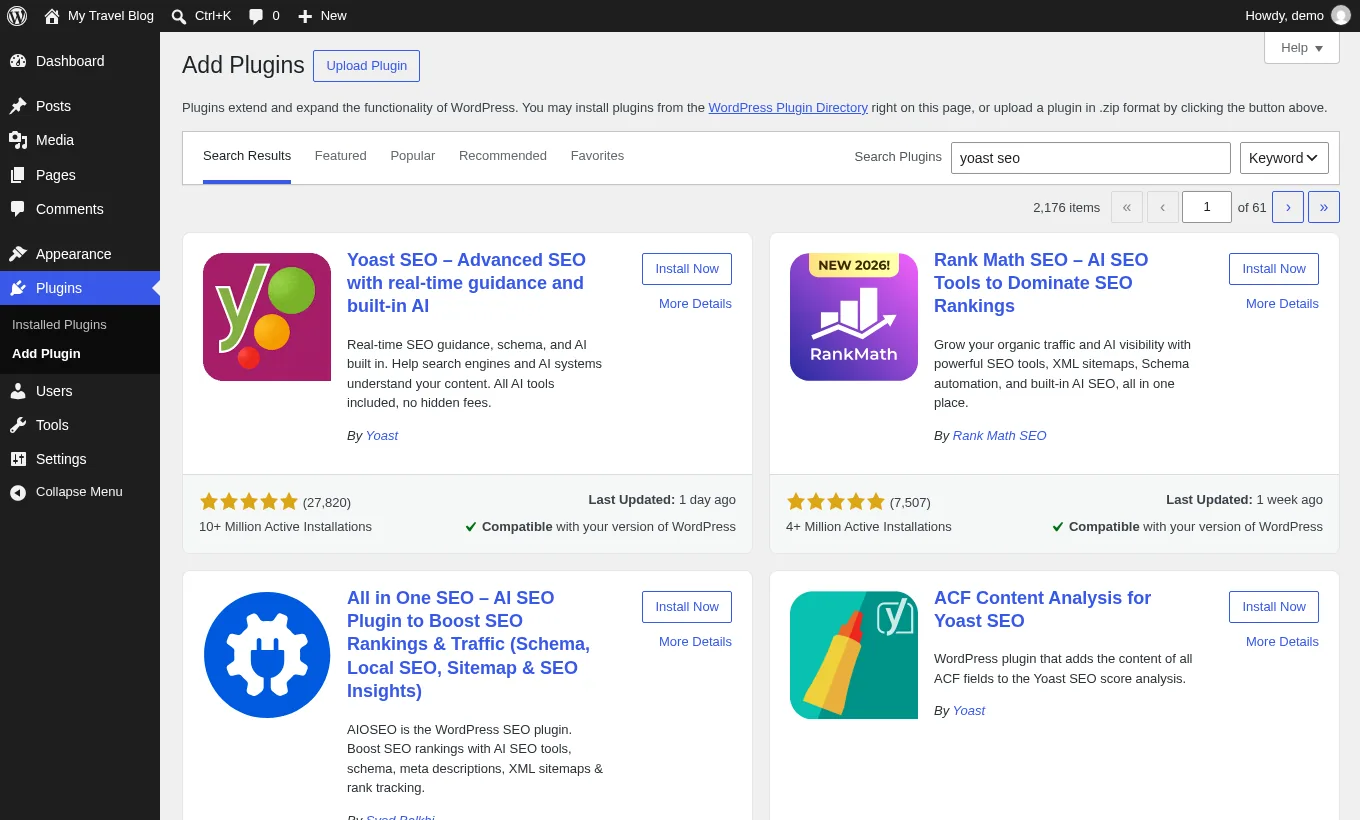
Installing is the same for every one of them: Plugins → Add New Plugin, search the exact name, check the author matches (Yoast by “Team Yoast,” Site Kit by “Google,” Wordfence by “Wordfence”), click Install Now, then Activate. Now the order, and the ten-minute job for each:
- First, run PageSpeed Insights on a post with no plugins active. Write down the mobile score. That’s your baseline, and you’ll want it later.
- UpdraftPlus: connect Google Drive, set schedules, run one backup now.
- Wordfence or Solid Security: enable 2FA on your account, enable login limiting, schedule a weekly scan email.
- Yoast SEO or Rank Math: run the wizard, set Person + your name, upload a default social image, noindex date and tag archives.
- Site Kit: sign in with Google, connect Search Console and Analytics (create a GA4 property if asked), exclude logged-in users.
- Converter for Media: enable WebP + AVIF, quality ~85, run the bulk optimizer.
- Caching: enable your host’s cache or install LiteSpeed Cache / WP Super Cache; page cache on, browser cache on.
- Fluent Forms: build the three-field contact form and drop it on your Contact page.
- Akismet or Antispam Bee: activate; Akismet needs a free personal key from akismet.com.
- Re-run PageSpeed Insights. The score should be equal or better than your baseline thanks to caching and WebP. If it dropped, one of these is misconfigured; deactivate them one at a time until you find the culprit.
- Turn on auto-updates for every plugin in this list (Plugins → Enable auto-updates). With backups in place, the risk of an update breaking something is smaller than the risk of running old code.
Plugins you might add later (and the trigger for each)
Not now. Seriously, not now. But when the trigger happens, this is what I reach for on client sites.
- Email list plugin or form embed when you have 10 posts live. Most email services give you an embed block; a plugin is optional. See how to build a travel blog email list from day one.
- Cookie consent / consent mode plugin when you add ads or affiliate scripts and have EU or UK readers. Covered in the legal pages every travel blog needs.
- Affiliate link manager (Pretty Links or ThirstyAffiliates) when you’ve got more than a dozen affiliate links and want to update them all in one place.
- Redirection plugin the first time you change a URL or delete a post that had traffic. Rank Math has this built in; Yoast Premium does too.
- Table of contents block when your posts regularly pass 2,000 words. Check your theme’s blocks or Rank Math first.
- WP Rocket when you’ve done the image work, have real traffic, and still see a mobile score under 80. Not before.
- Ad management plugin when an ad network accepts you, and they usually hand you their own.
Common plugin mistakes I keep fixing on travel blogs
- Deactivating instead of deleting. Inactive plugins still sit on the server, can still be exploited if vulnerable, and still nag you about updates. Delete what you’re not using.
- Installing whatever the theme’s “recommended plugins” notice lists. Those notices are often partnerships, not advice. Only install what a demo import truly needs, then remove anything you don’t use.
- Never running the SEO plugin’s setup wizard. Without it, your site is tagged as an “Organization” with no name and no default social image, so your Pinterest and Facebook shares look broken.
- Setting up a backup plugin but storing backups on the same server. If the server dies, the backups die with it. Always send them to Drive, Dropbox or S3.
- Running Site Kit’s Analytics and a manual GA4 snippet at the same time. Every visit counts twice. One tag, placed by one plugin.
- Flipping every optimization toggle at once. When the site breaks you can’t tell which switch did it. One at a time, test, next.
- Ignoring the “this plugin has not been tested with your version of WordPress” warning for years. It usually means abandoned. Find a maintained replacement.
Keep the stack lean and this whole part of blogging becomes invisible, which is the goal. Nobody has ever subscribed to a travel blog because of its plugin list. They subscribe because you went somewhere, paid attention, and wrote it down well, which is step six of my guide to starting a travel blog from scratch.
That’s the lot. Eight plugins, an hour of clicking, and your blog is faster and safer than most of the ones you’re competing with. Don’t overthink it and don’t go hunting for plugin number nine. If you hit a snag with any of these, or you’re staring at a setting and not sure which way to flip it, drop me an email and I’ll help you out for free. Now close this tab and go write something.
Frequently asked questions
How many plugins should a new travel blog have?
Eight to twelve, and eight is the sweet spot. Eight covers every job that actually matters: SEO, security, caching, image optimization, a contact form, Google Analytics and Search Console via Site Kit, antispam and backups. Don't obsess over the count, though. Weight is what hurts you. One page builder or slider plugin can slow your site down more than fifteen lightweight ones put together.
Yoast SEO or Rank Math: which is better for a travel blog?
Both are good, honestly. I use Yoast SEO on my own sites because it's stable and the defaults are sensible. Rank Math gives you more in its free tier, including a redirect manager and multiple focus keywords. Pick whichever interface you like the look of, run its setup wizard, and never run both at once. That's the only rule.
Do I need a caching plugin if my host already has caching?
Usually not. Bluehost, SiteGround, Hostinger and most modern hosts give you page caching through their own plugin or LiteSpeed Cache. Use that first, it's free. Only add WP Rocket once your images are sorted, you've got real traffic, and the mobile PageSpeed score is still stuck under about 80.
What is the best free image optimizer plugin for WordPress?
Converter for Media is my pick for a new blog. It converts your whole library to WebP and AVIF on your own server with no monthly quota. ShortPixel and Imagify squeeze files slightly smaller but charge from around $4–$5 per month after a small free allowance. The bigger win? Resize photos to 1600–2000px before you upload. That matters more than any plugin.
Is Akismet free?
For personal, non-commercial blogs, yes: Akismet Personal is a name-your-price plan that can be $0. Once your blog earns money from ads or affiliate links, Akismet's terms require a commercial plan from around $10 per month. Antispam Bee is the free alternative I'd point you to then. No account, no fuss, and it works well with manually approved comments.
Which WordPress plugins should I avoid on a travel blog?
Page builders for blog posts, slider and carousel plugins, social share bars with counters, Instagram feed plugins, popup plugins in your first few months, broken link checkers that run around the clock, and anything nulled or from a GPL club. Every one of them is heavier than the problem it solves, or it's fixing a problem you don't have yet. Skip the lot.
Should I turn on automatic updates for plugins?
Yes, for the well-maintained plugins in this list, as long as you've got scheduled off-site backups running first. Running old, vulnerable code is a bigger risk than an update breaking something. Turn auto-updates on from the Plugins screen and just have a quick look at your site after major WordPress releases.
Is Site Kit by Google worth installing?
Yes, and do it in week one. It's Google's own free plugin, it verifies your site in Search Console and connects Google Analytics 4 without you touching theme code, and it survives a theme change. Skip the AdSense and Tag Manager modules until you actually need them, and tick the option to exclude logged-in users so your own visits don't muddy the numbers.
Some links in this guide are affiliate links. If you buy through them I earn a commission at no extra cost to you, which keeps the free help free. Full disclosure.
Keep going
Google Analytics 4 and Search Console for Travel Blogs
The 2026 setup guide for Google Analytics 4 and Search Console on a WordPress travel blog: about 45 minutes, costs nothing, and after that…

Legal Pages Every Travel Blog Needs (With Templates)
The privacy policy, affiliate disclosure, cookie consent, terms of use, copyright note and travel disclaimer every travel blog needs, with skeleton templates you can…
Free vs Paid Travel Blog: Which Platform Should You Pick?
The honest free vs paid travel blog comparison I give every client: ownership, ads, custom domains, monetization limits, SEO control, migration pain, and what…
Questions & answers
Entries tagged “Common question” are questions beginners ask me all the time; I’ve added them here with my answers. Everything else is from readers. Got one of your own? Ask at the bottom and I’ll reply.
Common question
I installed Wordfence and now it’s blocked ME from logging in to my own site. How do I get back in?
Aghosh Babu Author
Happens to the best of us. Two ways back in. The polite way: the lockout screen usually has an option to email an unlock link to the site’s admin address. Use that and you’re in within a minute. The blunt way, if the email doesn’t arrive: log in to your hosting account, open File Manager, go to public_html → wp-content → plugins and rename the wordfence folder to wordfence-off. That switches the plugin off, nothing else. Log in as normal, rename the folder back, and reactivate it. Then find out why it happened. It’s nearly always too many wrong password attempts, so save the right one in your password manager and set the login limit to something forgiving, like five tries.
Common question
Bluehost already put Jetpack on my site and it says it does stats, security and backups. Do I still need the separate plugins on your list?
Aghosh Babu Author
Fair question, and it’s the one-plugin-per-job rule in action. Jetpack is a bundle. The free version gives you basic stats and some login protection, but the backup feature is part of its paid plans, so check what you’ve actually got before you rely on it. You’ve got two clean options. Keep Jetpack for stats in month one and add only what it doesn’t cover. Or do what I do on client blogs: delete it and use Site Kit for Google’s own numbers, Wordfence for security and UpdraftPlus for free backups to Google Drive. What you must NOT do is run both sets side by side… two security tools and two stats tools just slow the site and argue with each other. My verdict on everything else Bluehost pre-installs is in the WordPress on Bluehost install guide.
Common question
A plugin updated itself overnight and now my whole site is a white screen with a “critical error” message. What do I do?
Aghosh Babu Author
Don’t panic, your posts are fine. First check your inbox: WordPress usually emails the admin address a special recovery link when this happens. Click it, and you get into the dashboard in recovery mode, where it tells you which plugin crashed so you can deactivate it. No email? Log in to your hosting account, open File Manager, go to public_html → wp-content → plugins, and rename the folder of the plugin that last updated (add -off to the end). The site comes straight back. Not sure which one? Rename the whole plugins folder, confirm the site loads, rename it back, then reactivate them one at a time until you find the culprit. Last resort is restoring last night’s UpdraftPlus backup, which is exactly why you set it up.
Common question
Yoast is giving my post an orange light for SEO and a red one for readability. Do I have to get both green before I hit publish?
Aghosh Babu Author
No. Publish it. The lights are a checklist written by a plugin, not a score from Google, and Google never sees them. I’ve had client posts rank with an orange light and all-green posts go nowhere. Here’s what’s worth fixing, in two minutes: the phrase you’re targeting is in the title and the first paragraph, the SEO title isn’t cut off, and you’ve written a proper meta description. That’s the lot. The readability nags about sentence length and passive voice you can mostly ignore… a travel post full of place names and prices trips them constantly. Chasing green is how people end up stuffing the same phrase into every heading, which reads terribly and helps nobody. Write for the person planning the trip. What actually moves rankings is in my travel blog SEO guide for beginners.